
FAQ
arrow_back_ios
How to show an on-screen message to the customer after they complete an order?
You can show your own message to the customer on the final screen of the widget once the order is completed. The message is displayed on the screen only. To send an email instead, use the Send email action.
First, create a message template. Go to the dashboard, open Templates and integrations, and create a template with the message text. Only the template body is displayed — the subject is not used. You can insert order parameters into the body, and the message can be plain text or HTML. Learn more about editing templates here.
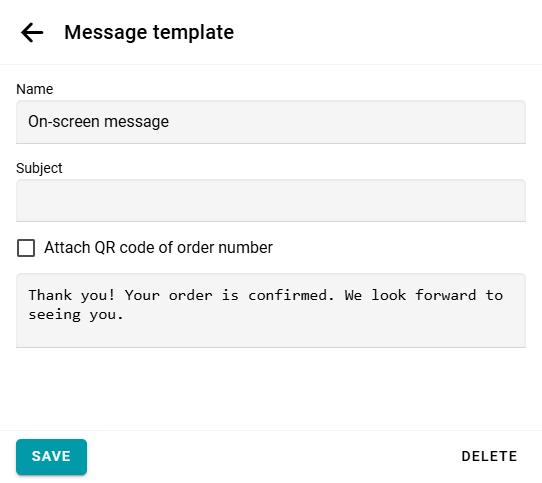
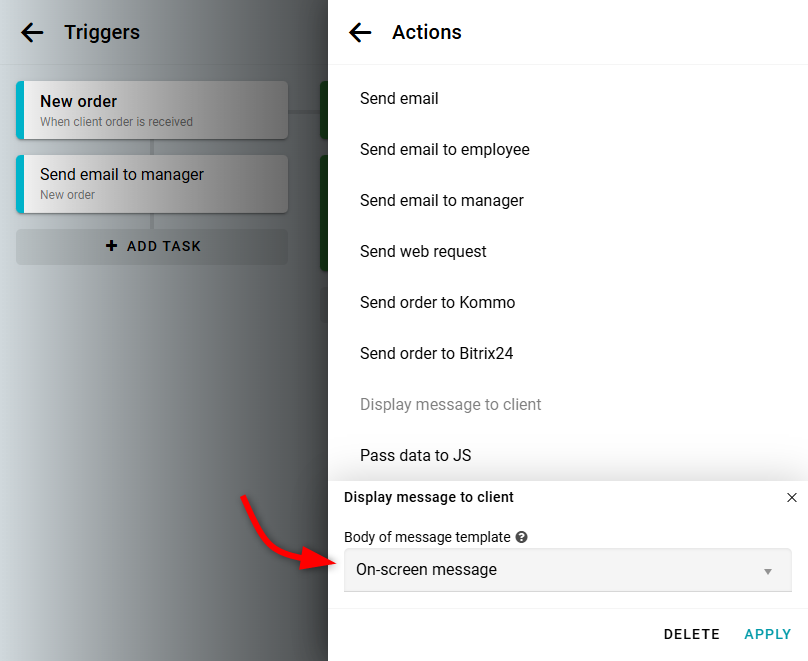
Next, go to the Triggers section. Create an automatic trigger that is executed When client order is received. Add a task to the trigger. Then, add the Display message to client action and select your template.
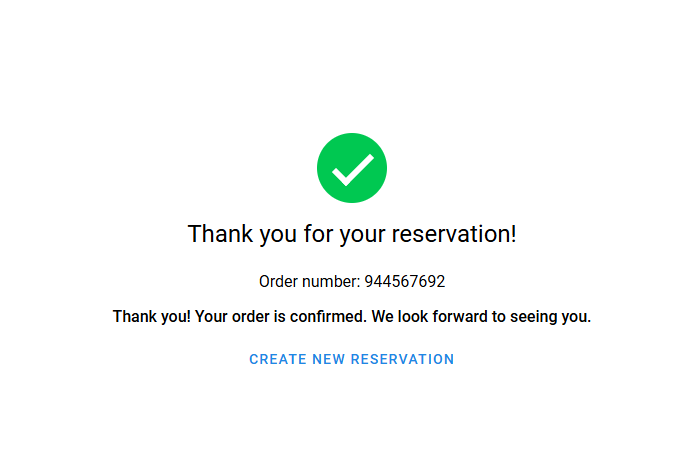
Check the result. Once a customer completes an order, the body of the template is displayed on the final screen of the widget.
Learn more about how triggers work here.